Running and Refreshing Your Flux Report
Last updated: July 5, 2026
Flux runs on a schedule, but you're not stuck with the schedule. This article covers how to control when Flux runs, how to tell when results are out of date, and how to refresh a single account or the entire report on demand.
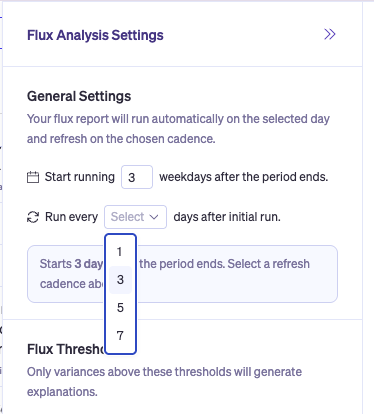
Choose how often Flux runs
You control how often Flux refreshes between close periods. Open Flux Analysis Settings and pick Every 3 days, Every 5 days, or Every 7 days (the default is daily for 7 business days after the period ends).
When to change it:
Every 3 days — heavy close, want frequent refreshes as new entries land.
Every 5 or 7 days — lighter cadence; fewer runs, less noise, and you only come back to a meaningful refresh.
The next scheduled run date shows directly under the setting so you always know when results are coming.
See when Flux last ran
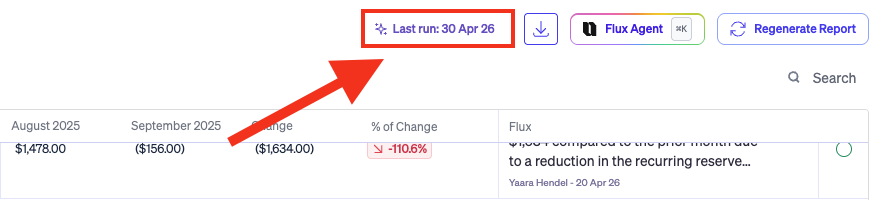
The top right of the report shows when the last full run completed. Inside the table, each row also keeps its own timestamp showing when that specific explanation was last regenerated or edited — so you always know how fresh each line is.
The "new data available" indicator
If your GL is updated after an account has already been explained, Flux flags that account as outdated. A small "new data available" indicator appears on the affected row so you know which accounts to re-review without manually checking dates.
Click into the account to regenerate (Quick if the change is small, Deep if the change is material — see below).

Regenerate a single account — Quick & Deep
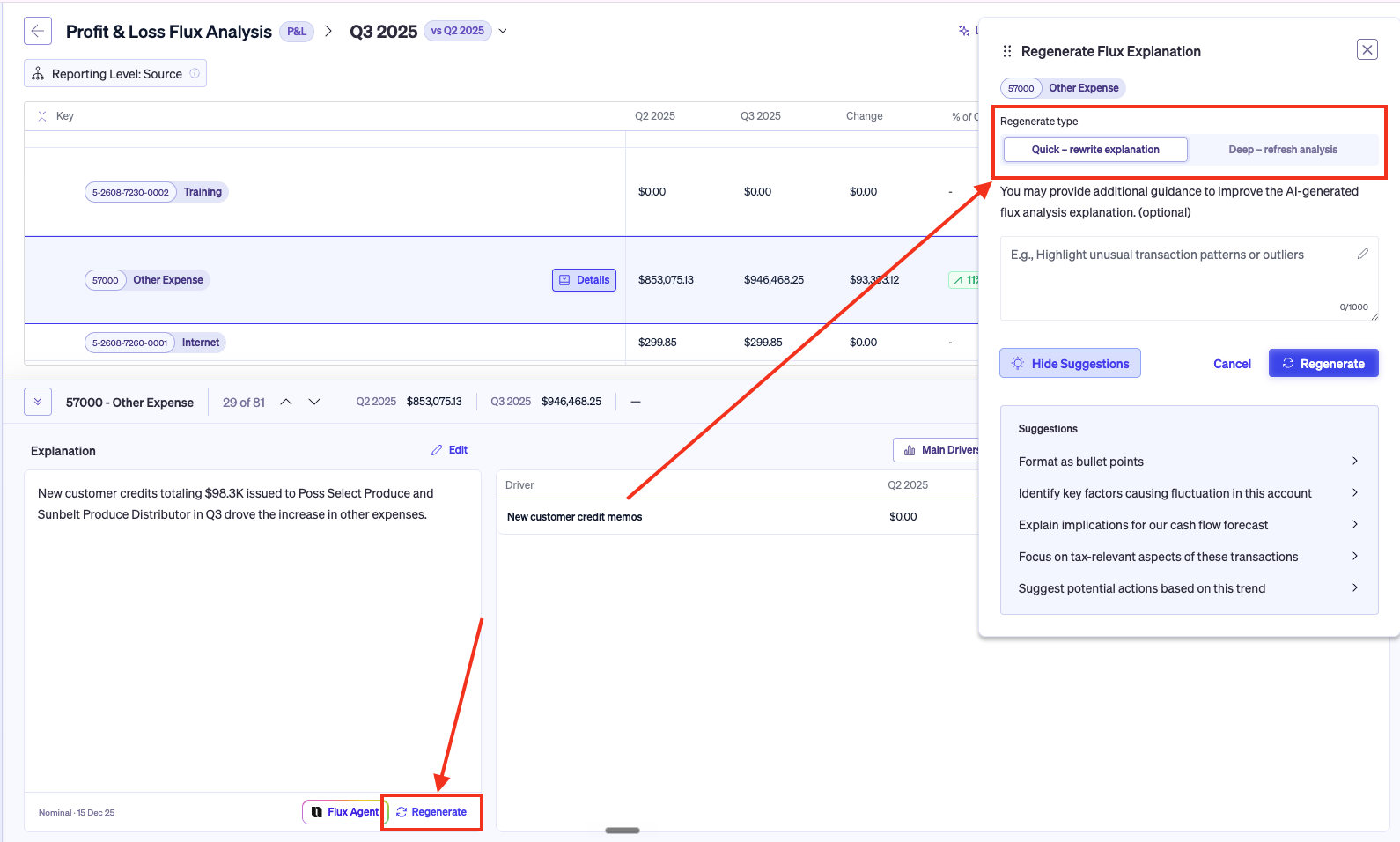
You can regenerate the explanation for a single account without re-running the entire report. Open the account row menu and choose Regenerate — you'll get two options:
Quick — rephrases the existing explanation. Use it when the analysis is right but the wording is off, or when you want a different tone (more concise, more detailed, less jargon). Takes a few seconds.
Deep — re-runs the underlying transaction analysis from scratch. Use it when the GL data changed, or when the explanation doesn't reflect what actually drove the variance. Takes longer because the AI re-examines the journal entries.
Regenerating a single account doesn't affect any other account in the report.
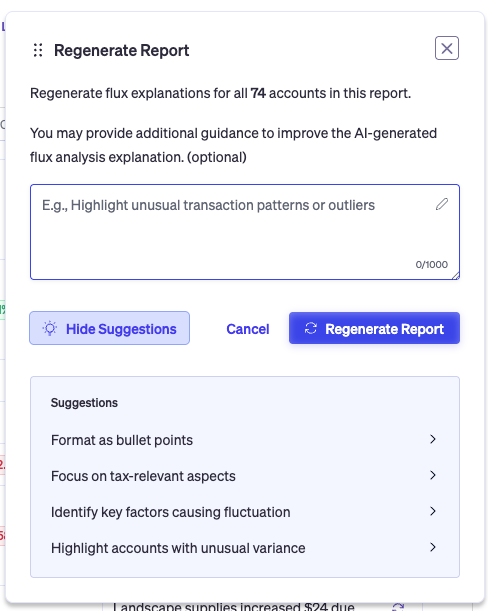
Regenerate the entire report
You can also regenerate the entire report in one click. Use the Regenerate button at the top of the report when you want every account re-evaluated against the latest GL data.
When the run finishes, you'll see a "Regeneration complete — X updated · Y skipped" message. Skipped means the account had no underlying data changes since the last run, so there was nothing new to analyze. That's the expected behavior, not an error.